Features: Visual Editor
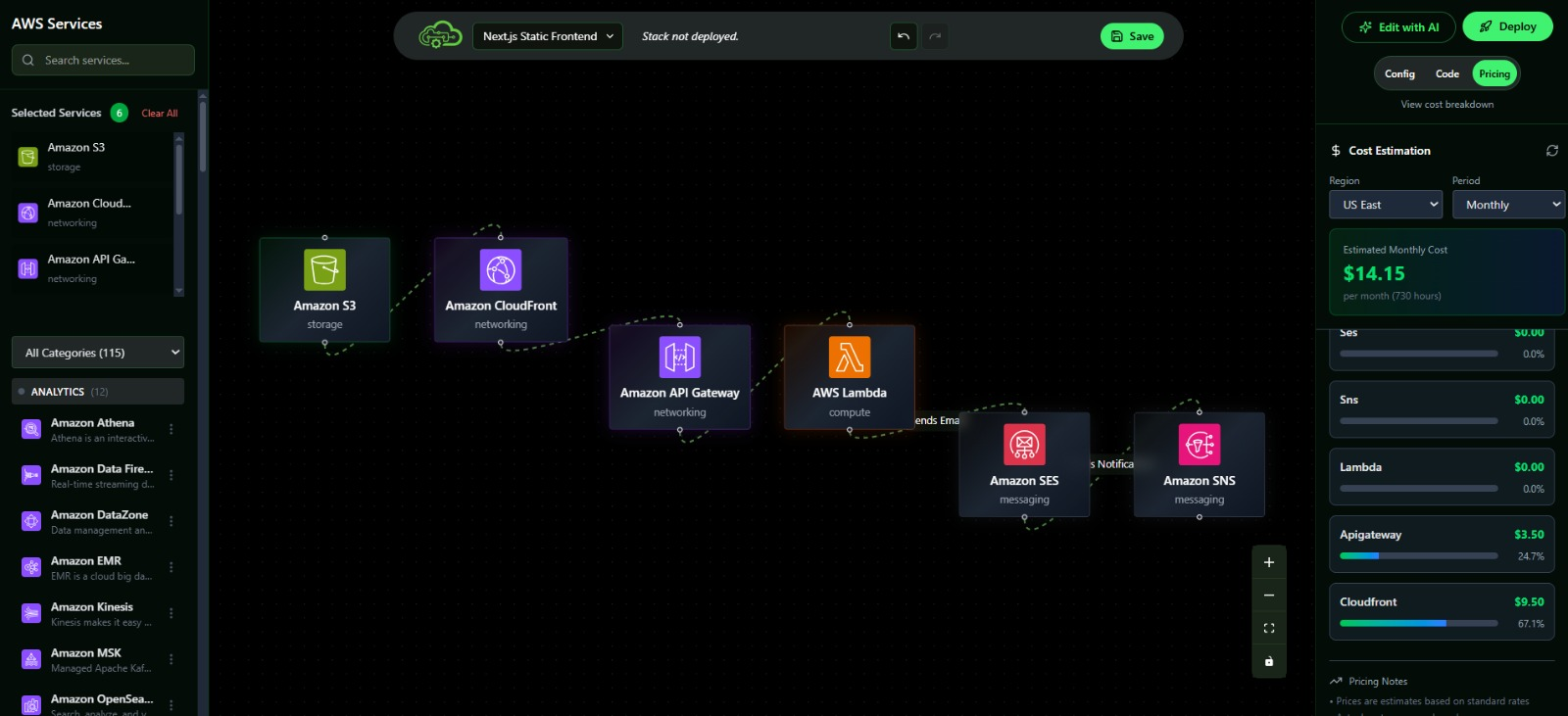
The CloudNOOE Visual Editor provides a tactile, intuitive way to build and manage your cloud infrastructure. It transforms abstract code into a concrete, interactive diagram, allowing you to see your architecture and make changes with simple drag-and-drop actions.
This visual approach is perfect for team collaboration, presentations, and for anyone who prefers a graphical interface over writing code. It works seamlessly with the AI Assistant, allowing you to generate a baseline architecture and then fine-tune it visually.
Key Capabilities
1. Drag, Drop, and Connect
Building an architecture is as simple as selecting components from the resource panel and dragging them onto the canvas.
- Rich Component Library: Access a comprehensive set of AWS services, logically grouped for easy discovery. Find everything from EC2 instances and S3 buckets to VPCs and Lambda functions.
- Smart Connections: Draw lines between components to establish relationships. The editor understands which connections are valid. For example, connecting an EC2 instance to a security group automatically creates the necessary association.
- Visual Feedback: Get immediate visual confirmation of your infrastructure's layout and dependencies.
Comparison: Visual Editor vs. Infrastructure as Code (IaC)
| Aspect | Traditional IaC (e.g., Terraform, CloudFormation) | CloudNOOE Visual Editor |
|---|---|---|
| Learning Curve | Steep; requires learning a specific syntax. | Intuitive; easy for anyone to understand. |
| Speed of Prototyping | Slow; requires writing and testing code. | Rapid; drag, drop, and configure in minutes. |
| Collaboration | Difficult; requires code reviews and merges. | Easy; share a visual diagram that everyone can grasp. |
| Discoverability | Requires reading documentation to find resources. | Browse a visual library of services. |
2. In-Depth Resource Configuration
The visual editor is more than just a drawing tool. It's a fully-featured configuration interface.
- Context-Aware Panels: Click on any resource (like an RDS database or an Elastic Load Balancer) to open a panel with all its configurable attributes.
- Guided Inputs: The interface provides dropdowns, toggles, and validated fields to prevent misconfigurations. For instance, when selecting an EC2 instance type, you can browse from a list of all available options.
- No Code Required: Modify security group rules, set IAM policies, or configure auto-scaling parameters without writing a single line of YAML or HCL.
3. Real-Time Synchronization
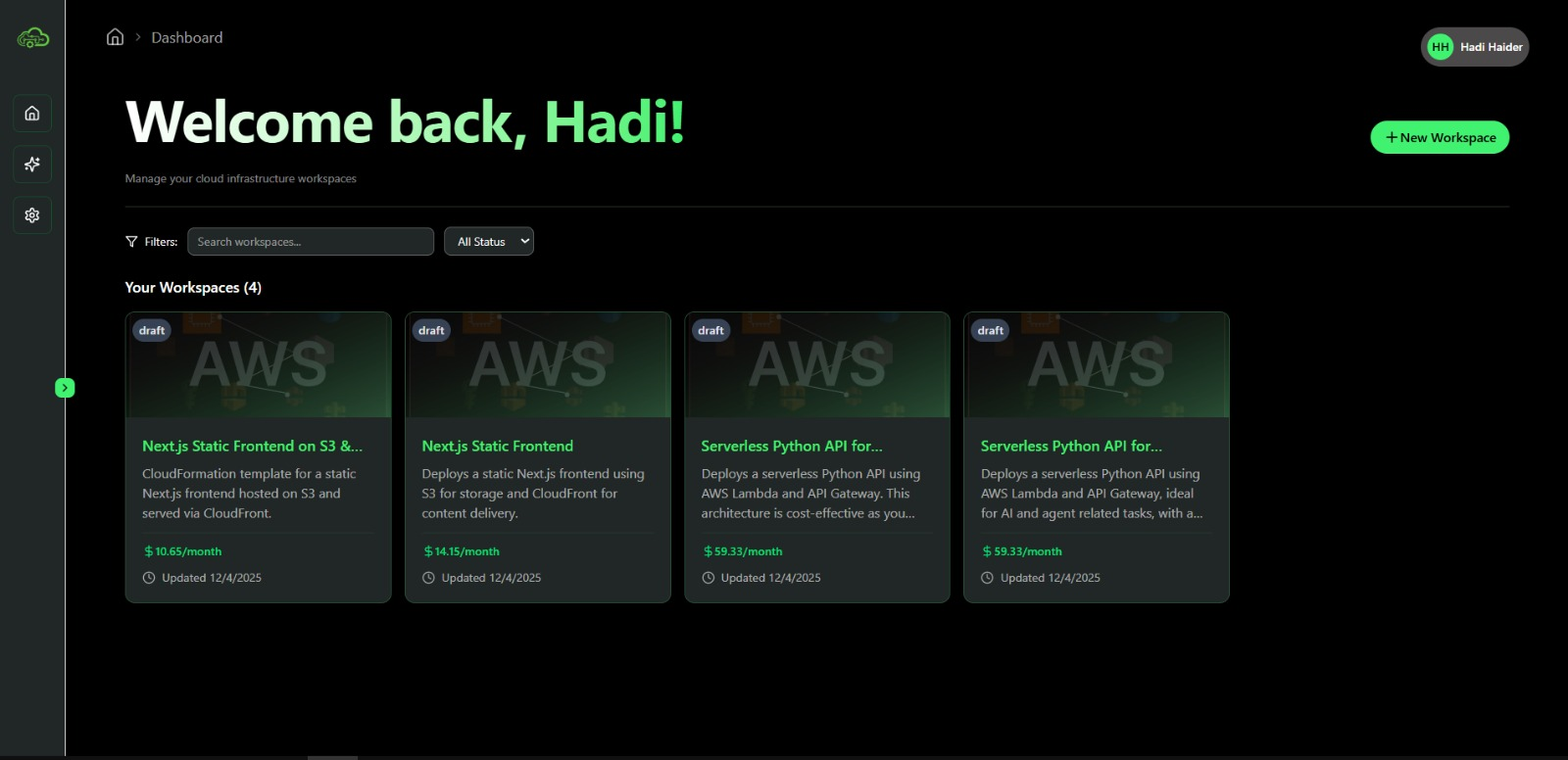
The visual editor is always in sync with the other parts of the CloudNOOE platform.
- AI Assistant Integration: When you use an AI prompt, the resulting architecture instantly appears on the canvas, ready for you to modify.
- Live Cost Updates: Any change made in the editor—like resizing an instance or adding a new service—is immediately reflected in the Cost Estimation dashboard.
- Code Generation: Behind the scenes, your visual diagram is continuously translated into a clean, deployable CloudFormation template.
Pro Tips for Using the Visual Editor
- Start with the AI: Use the AI Assistant to generate a solid baseline architecture, then use the visual editor to make specific tweaks.
- Group Resources: For complex designs, arrange related resources together to keep your canvas organized.
- Use the Zoom and Pan Controls: Navigate large, complex architectures with ease.
- Duplicate Resources: Need multiple, similar EC2 instances? Configure one, then duplicate it to save time.
Next Steps
- Learn how the visual editor impacts your budget in the Cost Estimation Overview.
- Prepare to launch your visual design with the Deployment Overview.